Copy and export chromatograms
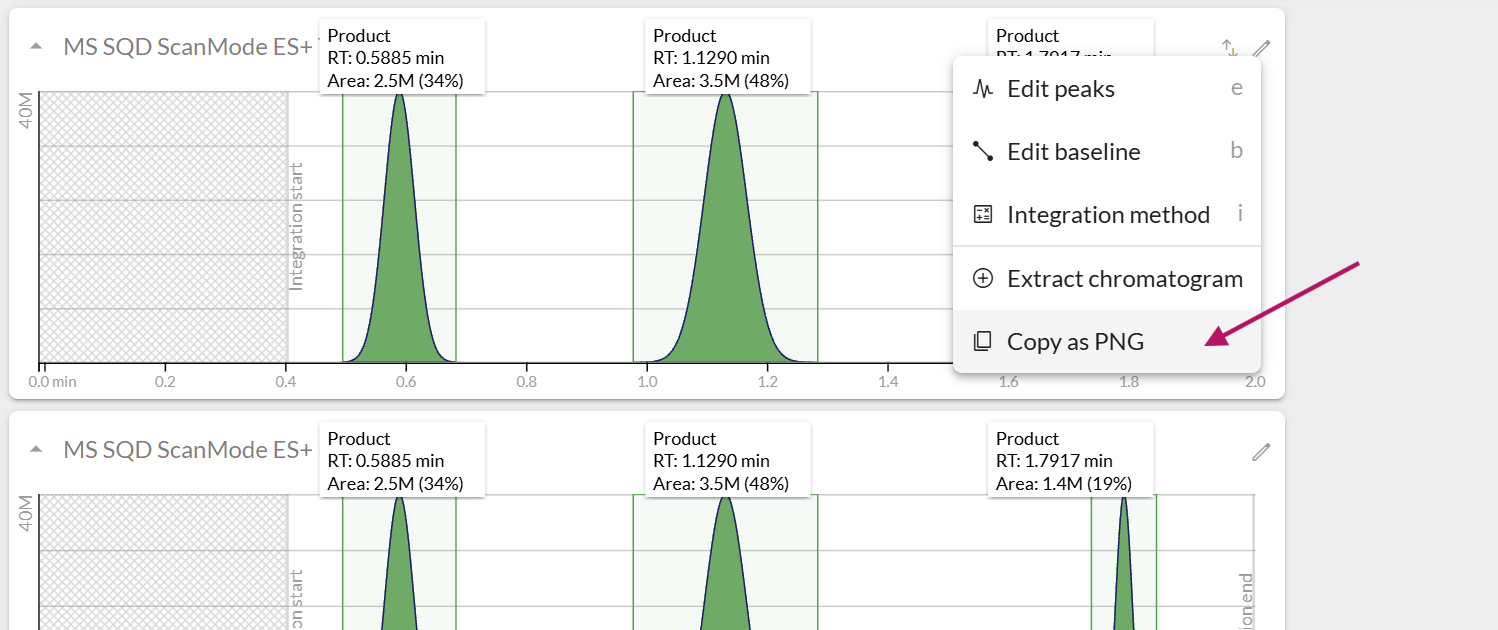
You can quickly copy or export chromatograms as PNG or SVG directly from the chromatogram card menu (pencil icon).
By using modifier keys, you can switch between different export modes on the same menu item:
-
Plain click: Copy PNG to clipboard
-
Hold shift & click: Save PNG as a file to your downloads
-
Hold Ctrl/Cmd & click: Copy SVG to clipboard
Troubleshooting
If copying to clipboard does not work, check the common causes below:
1. Secure connection required (HTTPS)
Modern web browsers only allow clipboard write access in a secure context (HTTPS). If your Peaksel instance is accessed over plain HTTP, the browser will block the clipboard action.
|
Workaround
Hold Shift and click the menu item (Save as PNG) to download the image file directly to your disk, as file downloads do not require clipboard permissions. |
2. Browser clipboard permission blocked
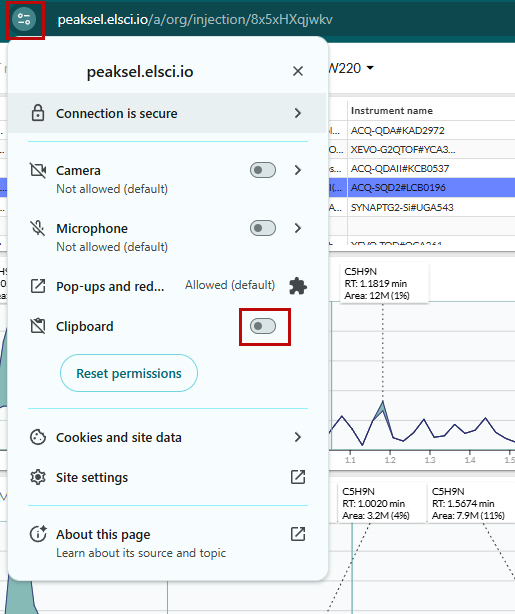
To enable clipboard permissions in Google Chrome (and other Chromium-based browsers):
-
Click the site settings icon (the icon with two sliders/toggles or a padlock) located to the left of the URL in the address bar.
-
Look for the Clipboard option in the menu (if it is not listed right away, click Site settings to view the full list of permissions).
-
Check the current status: if it is not set to Allow (or is currently blocked), switch it to Allow.
-
Reload the page and try using the "Copy as PNG" button again to see if the issue is resolved.